
Worklog
The Worklog is a unified view of every time entry recorded across all jobs. Where the Work log tab inside a job shows entries for that job only, the Worklog shows everything in one place — across all jobs, all crews, and all users.
The total hours currently shown by the active filters is displayed at the top right.
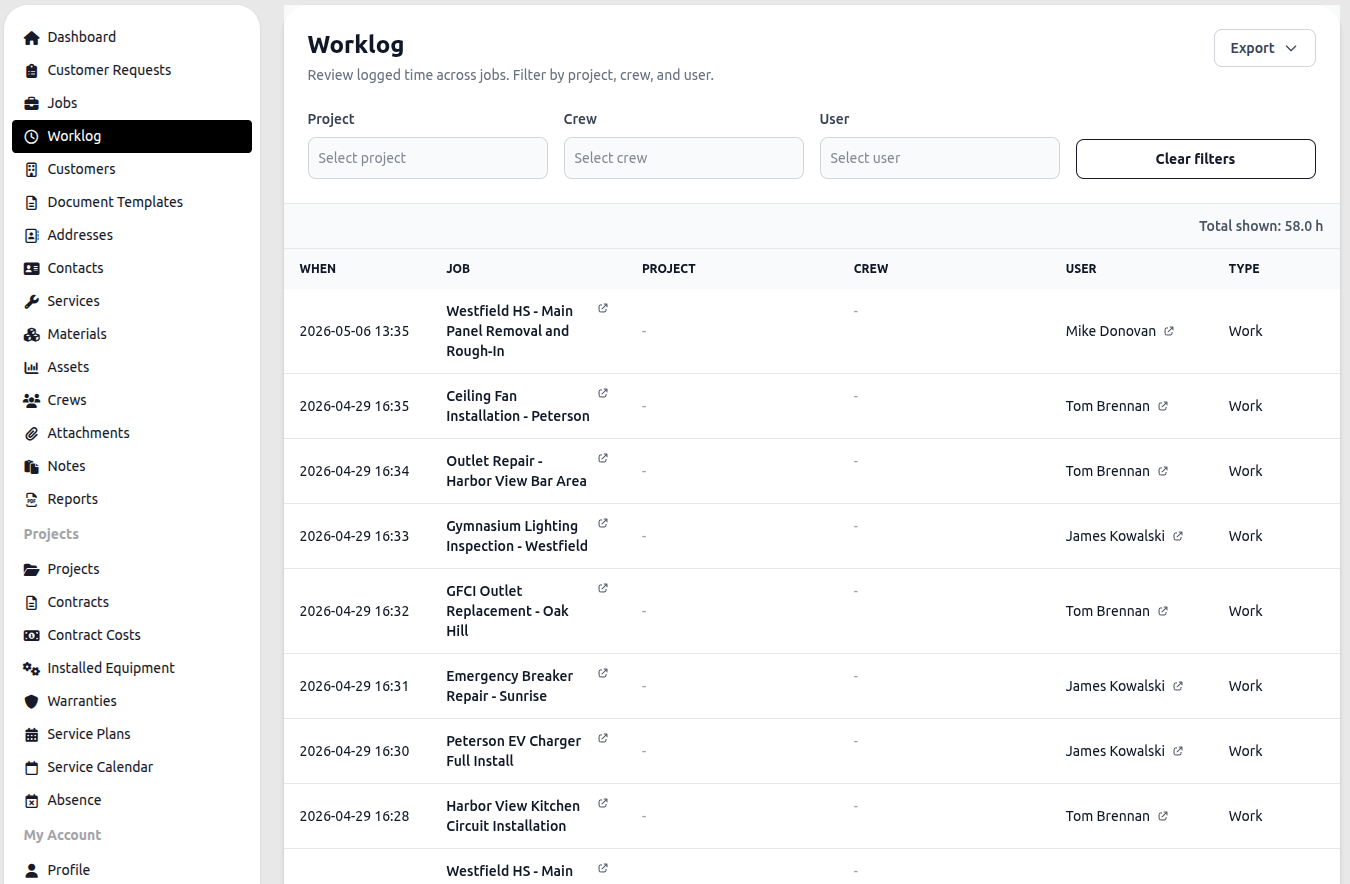
Columns
Section titled “Columns”| Column | Description |
|---|---|
| When | Date and time the entry was logged |
| Job | The job the time was recorded against |
| Project | The project the job belongs to, if any |
| Crew | The crew associated with the entry, if any |
| User | The employee who logged the time |
| Type | The type of work logged (e.g. Work) |
Filtering
Section titled “Filtering”The Worklog can be filtered by Project, Crew, and User. Filters can be combined. Click Clear filters to reset.
Exporting
Section titled “Exporting”Click Export to download the current filtered view. Useful for payroll processing, billing review, or sharing time data with an external system.
Adding and editing entries
Section titled “Adding and editing entries”Time entries are created from within a job — open the job, go to the Work log tab, and click Log time. Entries cannot be created directly from the Worklog view.
To edit or delete an entry, open the job it belongs to and use the Edit or Delete actions on the entry row.
See Work Log for details on logging time within a job.
Who sees what
Section titled “Who sees what”Dispatchers see all entries across all jobs. Employees see only entries that belong to jobs they are assigned to or are a member of an assigned crew for.