
Job Reports
Two printable reports can be generated directly from the Jobs list by selecting one or more jobs. Both produce a PDF that can be downloaded or shared via link.
How to generate a job report
Section titled “How to generate a job report”- Go to Jobs in the main navigation.
- Check the boxes next to one or more jobs.
- Click Time & Materials Report or Project Report in the bulk actions bar that appears.
- Set the From and To date range for the report.
- Click Open to generate the preview.
- Click Download PDF to export, or Share Report to generate a shareable link.
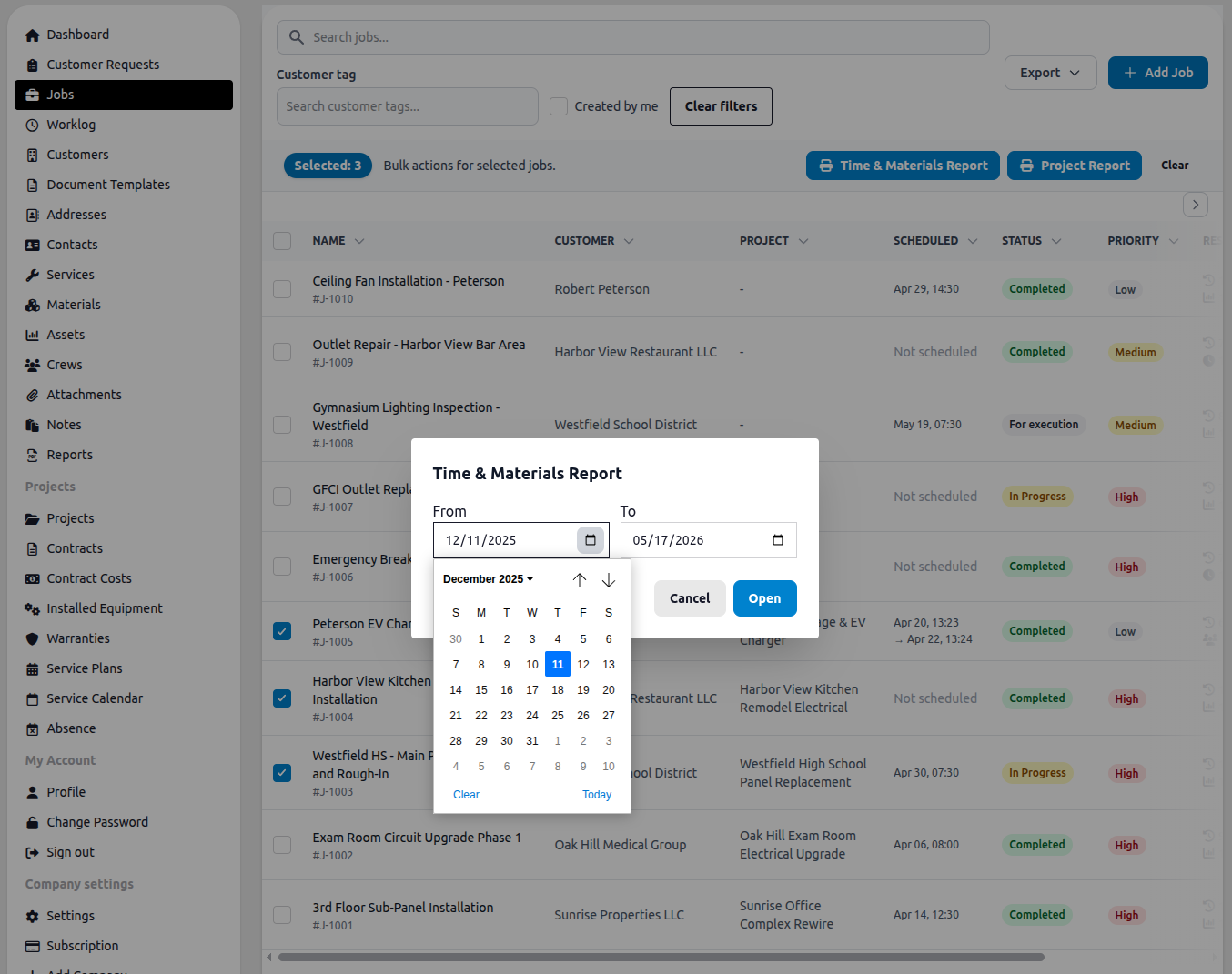
Multiple jobs can be selected at once. The report will consolidate data across all selected jobs for the chosen date range.
Time & Materials Report
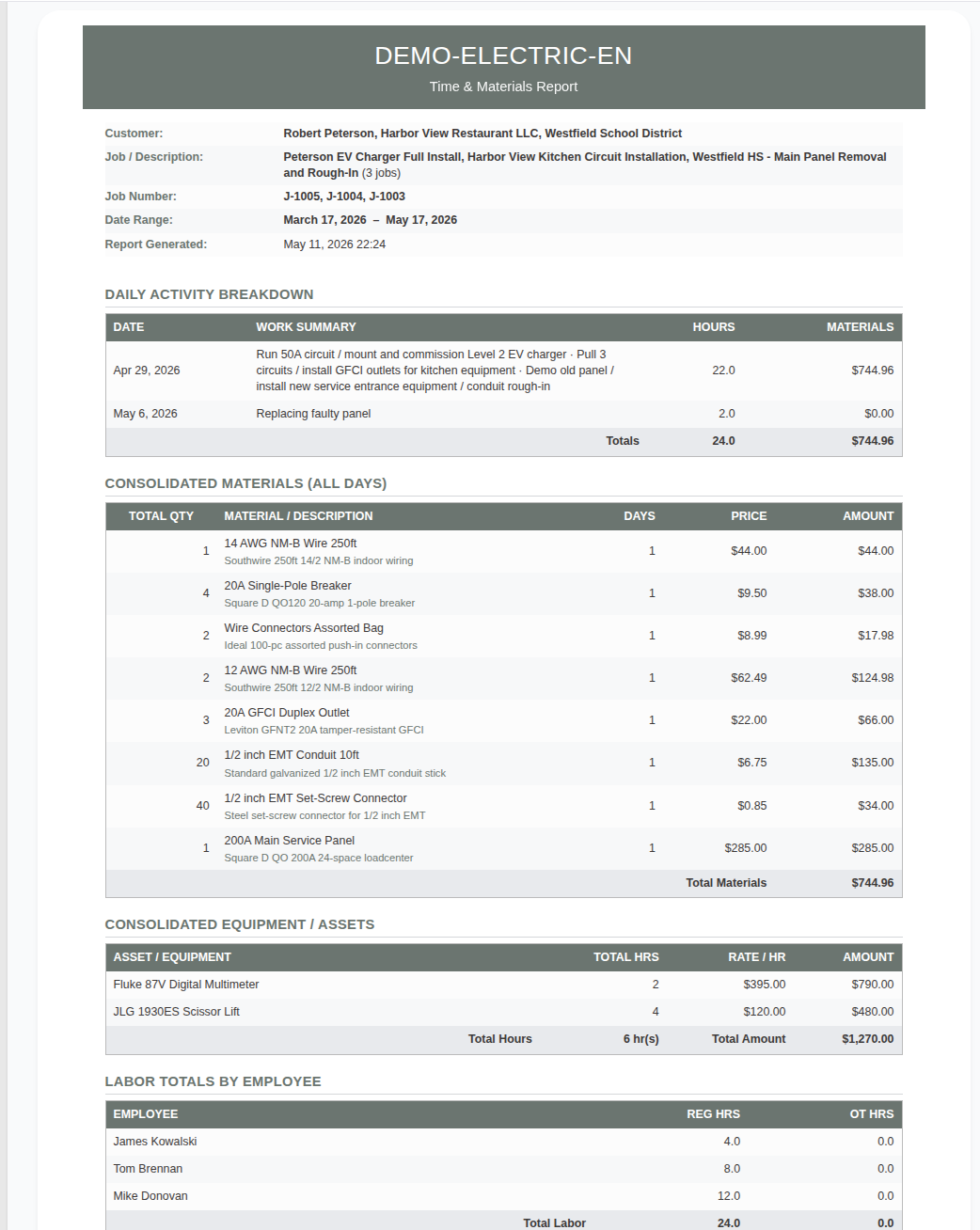
Section titled “Time & Materials Report”The Time & Materials Report covers daily work activity, materials used, equipment deployed, and labor hours for the selected jobs.
Daily Activity Breakdown
Section titled “Daily Activity Breakdown”Lists each date within the range that has recorded work, with a work summary, total hours logged, and total materials cost for that day.
Consolidated Materials
Section titled “Consolidated Materials”A full list of all materials used across the selected jobs and date range, grouped by item. Shows quantity, unit price, number of days used, and total amount.
Consolidated Equipment / Assets
Section titled “Consolidated Equipment / Assets”Lists all assets and equipment logged against the selected jobs, with total hours used, hourly rate, and total cost.
Labor Totals by Employee
Section titled “Labor Totals by Employee”Shows regular hours, overtime hours, and total hours per employee across all selected jobs for the date range.
Project Report
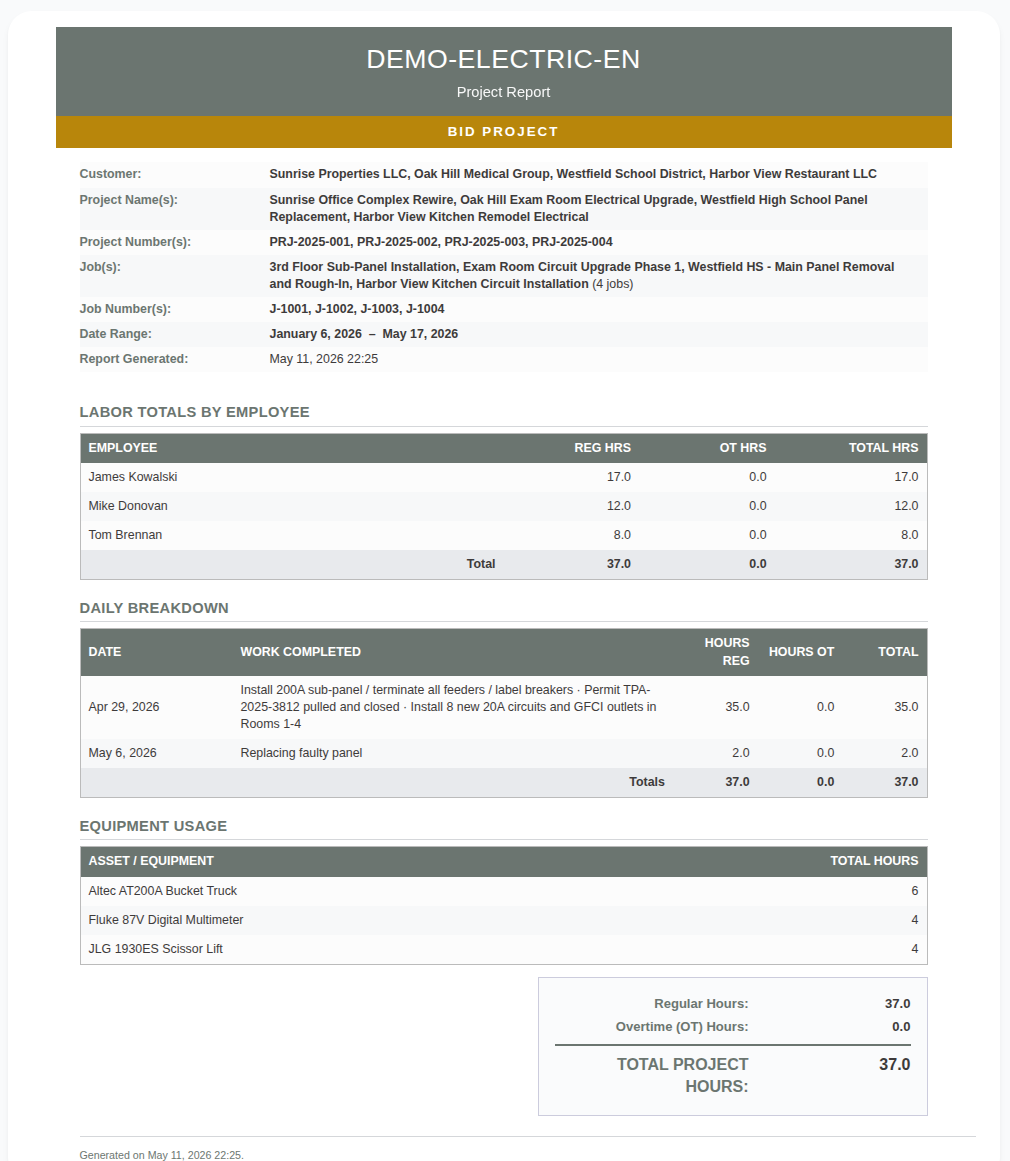
Section titled “Project Report”The Project Report is a higher-level summary focused on labor and equipment usage for project-linked jobs.
Labor Totals by Employee
Section titled “Labor Totals by Employee”Regular hours, overtime hours, and total hours per employee for the selected period.
Equipment Usage
Section titled “Equipment Usage”Each asset or piece of equipment used, with total hours recorded.
The summary box at the bottom shows Regular Hours, Overtime (OT) Hours, and Total Project Hours.
- Both reports display the customer name, job names, job numbers, date range, and generation timestamp in the report header.
- The Share Report button generates a link that can be sent to a client or saved externally without requiring a login.
- Jobs that have no work log entries for the selected date range will show zero values rather than being excluded.