Calendar
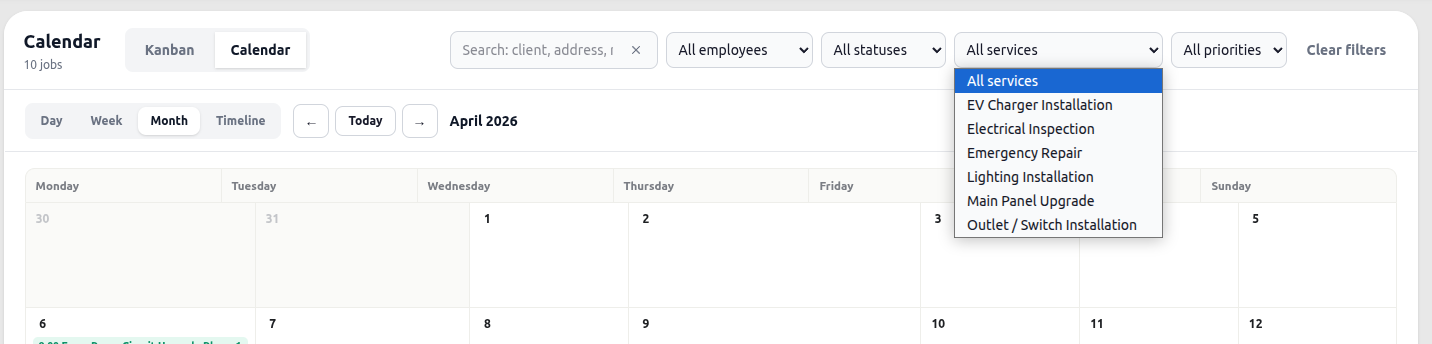
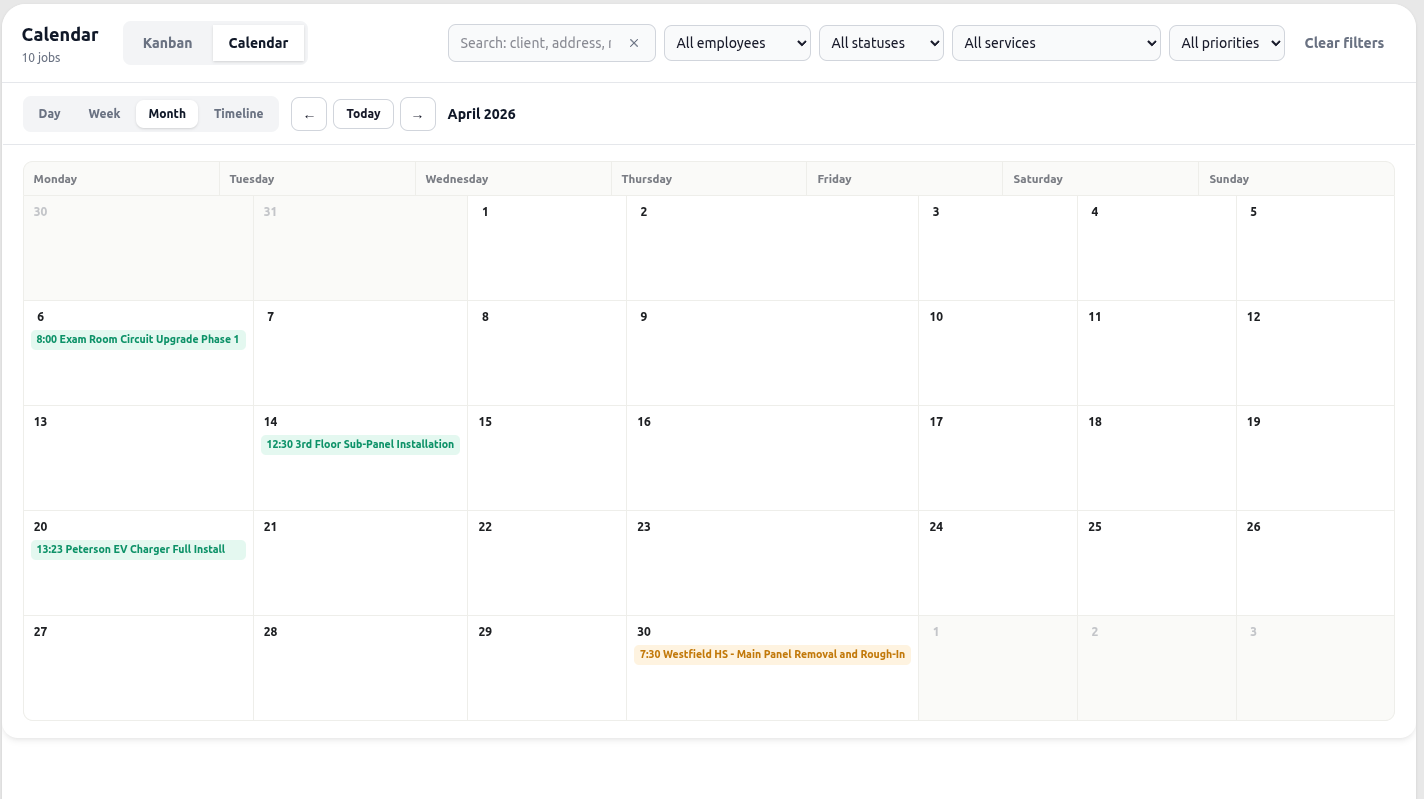
The Calendar gives you a live view of every scheduled job, who it’s assigned to, what stage it’s at, and when it’s happening. Switch between a Kanban board for tracking job status at a glance, or a Calendar view for seeing jobs laid out by day, week, month, or timeline.
Kanban board
Section titled “Kanban board”The Kanban board groups jobs by the employee they’re assigned to, with columns representing job status: Open, For execution, In Progress, Completed, and Cancelled.
Unassigned jobs appear in their own row at the top.
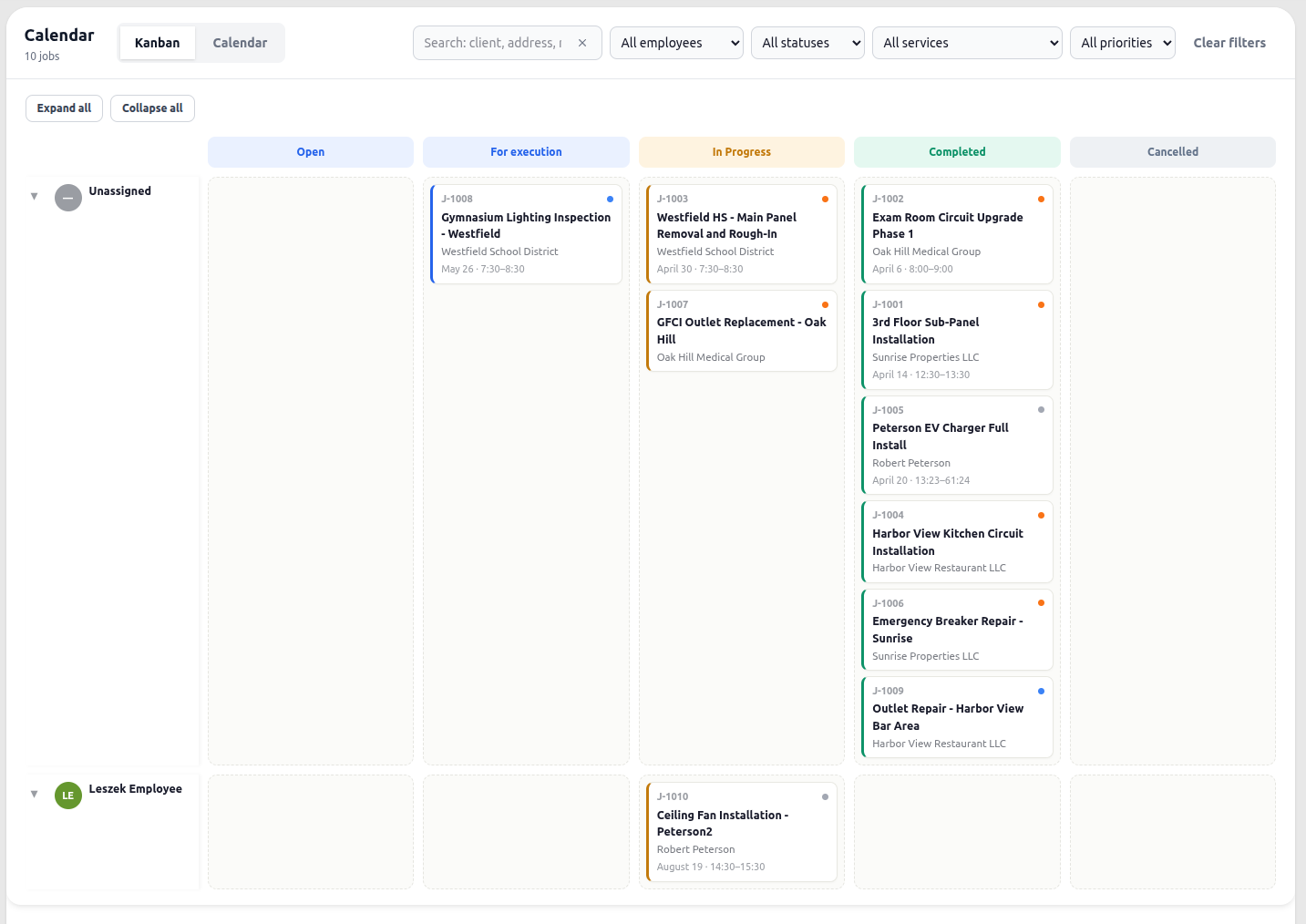
Drag a job card between columns to change its status, or drag it into a different employee row to reassign it.
Calendar view
Section titled “Calendar view”Switch to the Calendar tab to see jobs laid out on a timeline instead of by status. Four sub-views are available:
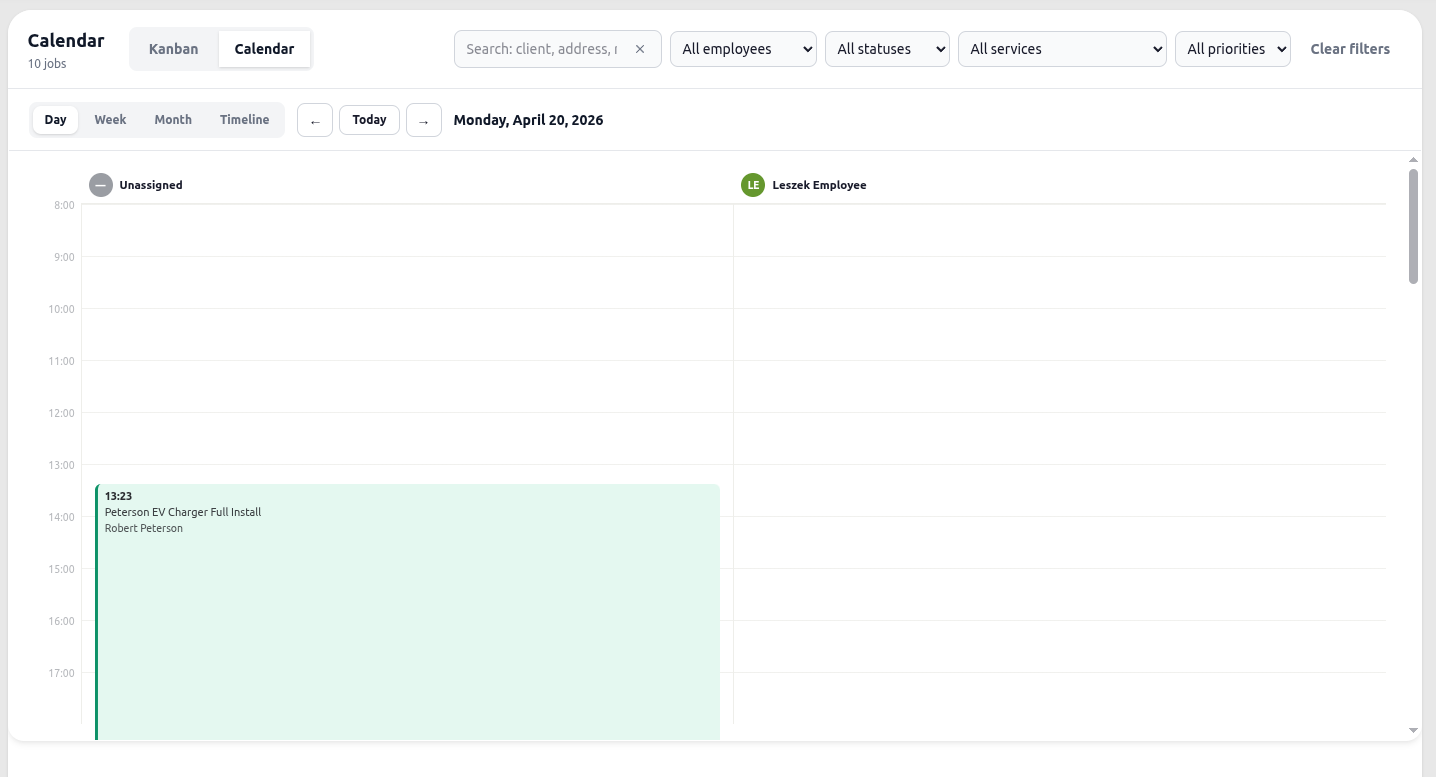
- Day a single day, with jobs shown as time blocks under each employee’s column
- Week seven days at a glance
- Month a full month grid
- Timeline jobs plotted across a horizontal timeline
Use the arrows or the Today button to navigate, or jump to a specific date. Drag a job to a different day or time slot to reschedule it.
Job cards
Section titled “Job cards”Each job card shows:
- Job ID and title
- Client name and address
- Scheduled date and time
- A priority indicator, a colored dot for Low, Medium, or High priority
Viewing and editing a job
Section titled “Viewing and editing a job”Click any job card, in either view, to open a quick-view panel:
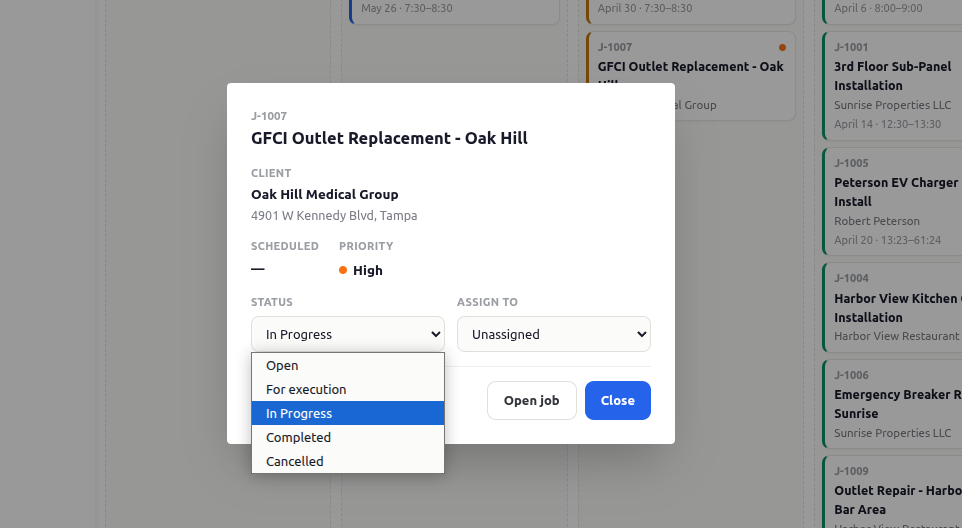
The panel shows the client, address, scheduled time, and priority, along with two editable fields:
- Status change the job’s status without leaving the calendar
- Assign to reassign the job to a different employee, or set it back to Unassigned
Click Open job to go to the full job record, or Close to dismiss the panel.
Filters
Section titled “Filters”Narrow down what you see using the filter bar above the board:
- Search filter jobs live by client, address, or job title as you type
- Employee All employees, Unassigned, or a specific employee
- Status All statuses, or one of the five job statuses
- Service All services, or a specific service type (for example, Electrical Inspection or Main Panel Upgrade)
- Priority All priorities, or Low / Medium / High
The job count above the board updates to reflect your active filters. Click Clear filters to reset everything.